
How to Make a Professional PowerPoint Presentation When You’re Short on Time
We’ve all been there.
You have a presentation tomorrow.
Maybe it’s for a client meeting. Maybe your manager wants a project update. Maybe you’re preparing a sales presentation, a strategy review, or a pitch.
You open PowerPoint.
Blank slide.
And suddenly the deadline feels a lot closer.
The good news is that making a professional presentation quickly isn’t really about typing faster. It’s about avoiding the parts of presentation design that don’t need to take your time in the first place.
Here’s a practical process you can use when you need a good-looking PowerPoint without spending your entire evening designing slides.
Step 1: Decide What the Presentation Needs to Accomplish
Don’t start by designing the title slide.
Start with the outcome.
Ask:
What do I want the audience to understand, decide, or do after this presentation?
For example:
- Get approval for a project
- Explain a business problem
- Present a marketing strategy
- Update a client
- Pitch a product
- Report project progress
- Present sales results
- Explain a process
- Compare different options
Once you know the outcome, the rest of the presentation becomes much easier to structure.
Step 2: Write the Story Before You Design the Slides
You don’t need a 30-slide outline.
You need a simple story.
For many business presentations, something like this works:
- What are we talking about?
- What is the current situation?
- What is the problem or opportunity?
- What does the data tell us?
- What should we do?
- What happens next?
That’s enough to get started.
You can add or remove sections depending on the presentation.
The important thing is that you’re not designing slides before you know what those slides need to say.
Step 3: Turn Each Major Point Into a Slide
Now take your outline and turn the major ideas into individual slides.
For example, a project update might look like:
- Project overview
- Current progress
- Key achievements
- Problems or risks
- Timeline
- Next steps
A marketing strategy might look more like:
- Market situation
- Target audience
- Competitive landscape
- Strategy
- Campaign plan
- Timeline
- KPIs
Notice something important here.
The slides are being chosen because of the information they need to communicate.
That’s much easier than opening PowerPoint and asking, “What should I put on this slide?”
If you’re building a marketing deck, you can also browse marketing PowerPoint templates for layouts that already fit common marketing presentation needs.
Step 4: Use the Right Visual for the Information
This is where a lot of presentations go wrong.
Someone has a process to explain, so they put six bullet points on the screen.
Someone has a timeline, so they write three paragraphs about dates.
Someone has five options to compare, so they create a wall of text.
Instead, match the visual to the information.
Use a timeline when you’re showing events over time.
Use a process diagram when you’re explaining steps.
Use a comparison layout when you’re comparing options.
Use KPI cards when you’re highlighting important numbers.
Use a roadmap when you’re explaining where a project is going.
Use a chart when the relationship between numbers matters.
This sounds simple, but it can dramatically improve how quickly an audience understands a slide.
For example, if you need to explain a project timeline, browse roadmap slides instead of trying to build the entire visual from scratch.
Step 5: Don’t Try to Design Every Slide From Scratch
This is usually the biggest time saver.
You don’t need to invent a layout for every slide.
Professional PowerPoint templates already solve many of the repetitive design decisions for you: spacing, typography, alignment, visual hierarchy, colors, and common layouts.
That means instead of spending 20 minutes making one process diagram look acceptable, you can start with a professionally designed process slide and focus on entering your actual information.
The template shouldn’t dictate your message.
It should remove unnecessary design work.
Browse SlideSwift PowerPoint Templates
Step 6: Keep the Text Shorter Than You Think
Here’s a useful test:
Read your slide.
If you’re tempted to read it word-for-word while presenting, there may be too much text.
A slide is not your script.
Your audience should be able to understand the main point quickly while listening to you explain the details.
Instead of:
“Due to the changing market conditions and increasing customer expectations, our organization needs to reconsider its current approach to product development and customer engagement.”
Try something closer to:
Customer expectations are changing.
Then use a few supporting points or visuals underneath it.
The exact wording depends on your presentation, but the principle is the same: make the slide easy to scan.
Step 7: Use One Visual Idea Per Slide
A common mistake is trying to put everything on one slide.
A chart.
A paragraph.
Three icons.
A table.
A quote.
A timeline.
And somehow a stock photo.
At that point, the audience doesn’t know where to look.
If a slide has three important ideas, consider whether they should be three slides.
More slides don’t automatically mean a longer presentation.
Sometimes they simply mean each idea gets enough space to be understood.
Step 8: Make the Design Consistent
You don’t need to be a graphic designer to make a presentation look professional.
Consistency does most of the work.
Keep the following consistent:
- Font family
- Heading style
- Color palette
- Spacing
- Alignment
- Image treatment
- Shape style
- Chart style
This is another reason templates are useful.
A professionally designed template gives you a visual system that you can follow instead of making these decisions independently on every slide.
SlideSwift templates are organized around consistent design systems with multiple color styles and Light/Dark options.
Step 9: Use Slides That Solve Specific Presentation Problems
When you’re short on time, generic slides aren’t always enough.
Sometimes you need one very specific visual.
Maybe you’re trying to show:
- A SWOT analysis
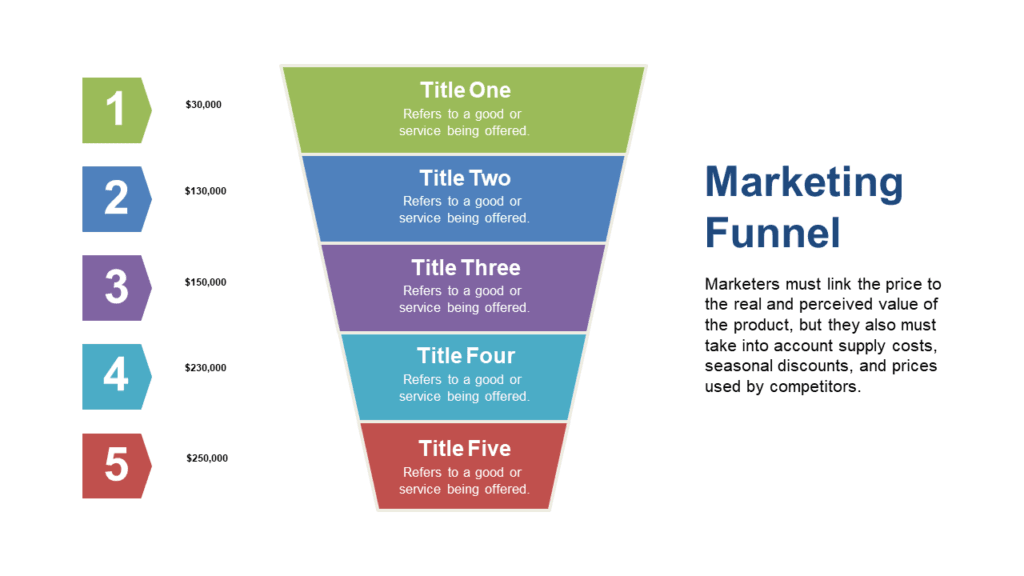
- A sales funnel
- A project roadmap
- A Gantt chart
- A process flow
- A KPI dashboard
- A comparison
- An organizational structure
- A marketing strategy
- A product launch plan
Searching for a specific slide type can be much faster than trying to create one from a blank canvas.
This is where the SlideSwift Slide Library can be useful.
Instead of buying an entire presentation when you only need one visual, you can pick the individual slide you actually need.
For example, if your deck is missing a strong SWOT visual, you can browse SWOT Analysis slides. If you need a timeline, look at timeline presentation slides.
Step 10: Leave Five Minutes for Cleanup
Don’t use every minute of your deadline adding content.
Leave a few minutes at the end for a quick cleanup.
Look at every slide and ask:
- Is the main point obvious?
- Is anything unnecessarily crowded?
- Are the fonts readable?
- Are the elements aligned?
- Are colors consistent?
- Did I accidentally leave placeholder text?
- Do charts and numbers match?
- Is the final slide clear?
This five-minute check can make a surprisingly big difference.
A Fast Presentation Workflow You Can Reuse
When you’re under pressure, use this sequence:
- 10 minutes: Define the objective and audience.
- 10 minutes: Write the presentation story.
- 15 minutes: Decide which slides you need.
- 20-30 minutes: Build the deck using a template or ready-made slide layouts.
- 10 minutes: Replace text, numbers, images, and branding.
- 5 minutes: Clean up and proofread.
The exact timing will vary, but the principle is useful:
Spend your time on the message, not on reinventing PowerPoint.
When Should You Use a Full Template?
Use a complete template when:
- You’re starting with a blank presentation.
- You need multiple slides with the same visual style.
- You don’t want to design layouts yourself.
- You need a presentation for a specific business use case.
- You want to finish faster while keeping the deck consistent.
SlideSwift’s main templates and use-case-focused Library Decks are designed for this kind of use.
You can start with a complete visual system and then replace the sample content with your own.
Explore complete SlideSwift templates
When Should You Buy Individual Slides Instead?
Individual slides make more sense when you already have most of your deck.
For example, imagine you’ve finished 12 slides and suddenly realize your presentation needs a professional roadmap.
You don’t need another 20-slide template.
You need a roadmap.
Or perhaps your deck is missing a strong SWOT analysis, KPI slide, process diagram, or comparison layout.
In those situations, buying the specific slide you need can be faster and more economical.
Explore the SlideSwift Slide Library
The Goal Isn’t to Make More Slides
This is probably the most important point.
A professional presentation isn’t the one with the most design elements.
It’s the one where the audience understands the message without having to work for it.
If a simple slide communicates the idea clearly, keep it simple.
If a diagram explains something better than six bullet points, use the diagram.
If a template saves you an hour of formatting, use the template.
Your audience doesn’t care whether you spent four hours designing the presentation.
They care whether they understood it.
Need a Professional Presentation Without Starting From Scratch?
If you’re working against a deadline, don’t make the design process harder than it needs to be.
Start with the presentation’s goal.
Choose the slides based on the information you need to communicate.
Then use a complete PowerPoint template when you need a full deck, or pick individual slides when you only need a few specific layouts.
SlideSwift gives you both options: complete presentation templates and a Slide Library where you can pick individual slides.
Because sometimes the smartest presentation shortcut isn’t doing less work.
It’s simply not doing the same design work from scratch.
Browse SlideSwift and start building your next presentation.