
The Problem Nobody Talks About
You just bought a PowerPoint template. It looks exactly like what you needed — clean layout, professional design, the right color scheme. You download the file, open it, and then reality hits: you don’t have PowerPoint installed. Or you’re on a Chromebook. Or you’re working from a client’s office on a machine that has a 2019 version of Office that keeps crashing.
This happens more than people admit. And for a long time, the only real answer was “buy a Microsoft 365 subscription” or “use Google Slides and hope the formatting doesn’t break.”
There’s a better option now — and if you’ve purchased a template from SlideSwift, you already have access to it.
What “Edit Online” Actually Means
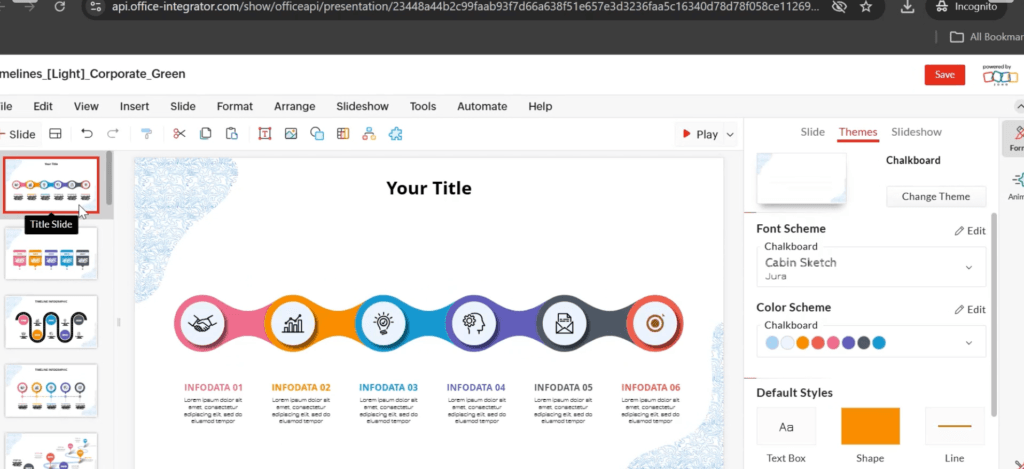
Every SlideSwift template purchase includes access to an online slide editor — powered by Zoho Show — that runs entirely in your browser. No download. No install. No software license required. You open it the same way you’d open a Google Doc: click a button, and it’s there.
Here’s what you can actually do inside it:
- Edit any text on any slide — headlines, body copy, labels, footnotes
- Change font size, weight, and color
- Swap out colors on shapes, backgrounds, and chart elements
- Move and resize elements
- Add or delete slides
- Replace placeholder images with your own
- Download the finished deck as a PPTX file — fully compatible with PowerPoint, Google Slides, and Keynote
It’s not a simplified “lite” version of an editor with half the features locked. It’s a real browser-based presentation tool with the functionality most people actually use when editing a business deck.
How It Works After Purchase
When you complete a purchase on SlideSwift, your order confirmation includes download links for each file in your deck — the Light theme, the Dark theme, and all the color variants you purchased. Alongside those download links, you’ll see an “Edit in Slide Editor” button.
Click it, and your entire deck — all slides, all layouts, all elements — loads directly into the browser editor. From there you can start making changes immediately. No account setup on your end. No waiting for a file to convert. It opens fast because the file is already on our servers, pre-loaded and ready.
When you’re done editing, hit Export and download the updated PPTX to your computer. That file will open cleanly in PowerPoint, Google Slides, or any other presentation software you’re using.
Who This Is Actually For
The online editor isn’t trying to replace PowerPoint for people who already have it and are comfortable using it. If you live in PowerPoint all day, you’ll probably still prefer editing there — and that’s completely fine. Download the PPTX and go.
But there are a few situations where the browser editor genuinely saves the day:
You’re on a Mac and don’t have Office. Keynote can open PPTX files but the formatting often shifts — fonts substitute, spacing breaks, gradients flatten. The browser editor keeps the original formatting intact because it’s working with the file directly.
You’re using a Chromebook. No PowerPoint, no Keynote, and Google Slides import can be unpredictable with complex layouts. The browser editor works natively on Chrome OS.
You need to make a quick edit from somewhere unexpected. A hotel business center. A client’s laptop. Your phone in a pinch. Anything with a browser and an internet connection works.
You want to make changes without installing anything. Some people just don’t want another piece of software on their machine. The browser editor requires nothing beyond a tab.
What It Looks Like in Practice
Say you’ve purchased a Business Infographic deck — 80 slides, Charcoal Gold color scheme, Light theme. You want to update the company name on the title slide, swap out the placeholder revenue numbers on the chart slides, and change one of the accent colors from gold to your brand blue.
In the browser editor, that whole process takes about 10 minutes:
- Click “Edit in Slide Editor” from your order page
- The deck loads — all 80 slides visible in the left panel
- Click on the title slide, click on the text, type your company name
- Navigate to the chart slides, click on the numbers, update them
- Select the gold accent elements, open the color picker, enter your brand hex code
- Export as PPTX
That’s it. The file you download is your edited deck, ready to present or share.
A Note on What It Can’t Do
Being honest here: the browser editor is excellent for the editing tasks most people actually need — text, colors, basic layout adjustments, image swaps. It’s not designed for building animations from scratch, writing complex macros, or the kind of deep PowerPoint customization that would take a designer an hour in the desktop app.
If you need that level of customization, download the PPTX and open it in PowerPoint or Keynote. The file is fully editable either way — the browser editor is an additional option, not the only one.
How to Access It
If you’ve already purchased a SlideSwift template, the editor button is in your order confirmation email and on your account’s order history page. Look for “Edit in Slide Editor” next to each file in your order.
If you haven’t purchased yet — every template on SlideSwift starts at $9, includes both Light and Dark themes, and comes with access to the browser editor on every file in your order. No additional fee, no subscription, no separate signup.
- How it works? Visit the site to see the tutorial.
- Browse all templates — from $9 →
- Pick individual slides — $0.99 each →
If you have questions about the editor or run into anything unexpected, the FAQ page covers the most common situations — and you can reach us directly through the contact page.