
How to Choose the Right PowerPoint Template for Your Presentation
There are two ways to start a PowerPoint presentation.
You can open a blank presentation and spend the next few hours deciding what every slide should look like.
Or you can start with a template that already gives you a strong structure and spend your time on the part that actually matters: the content.
For most business presentations, the second option is simply more practical.
The problem is that finding the right PowerPoint template can become its own project. Search for a business PowerPoint template and you’ll quickly find hundreds of options. Some look great but don’t fit your content. Others have beautiful title slides but very little useful structure for the rest of the presentation.
So how do you choose?
The easiest way is to stop choosing based only on how the template looks and start choosing based on what your presentation actually needs to do.
Start With the Purpose of the Presentation
Before you look at colors, fonts, or animations, answer one question:
What is this presentation supposed to accomplish?
A presentation for a sales meeting has a different job from an investor pitch. A project update is different from a marketing strategy presentation. A training deck doesn’t need the same visual structure as a SWOT analysis.
That means the “best” PowerPoint template isn’t necessarily the most attractive one.
It’s the one that fits your message.
- A sales presentation may need comparison slides, pricing sections, benefits, funnels, and data.
- A marketing presentation may need strategy diagrams, campaign plans, timelines, and metrics.
- A project management deck may need roadmaps, milestones, timelines, status updates, and process diagrams.
- A startup pitch deck may need problem/solution slides, market information, business model, traction, and financial highlights.
- A strategy presentation may rely heavily on frameworks, SWOT analysis, priorities, roadmaps, and decision-making slides.
If you know the purpose first, you can eliminate a huge number of templates before you even start comparing designs.
Don’t Choose a Template Just Because the Cover Slide Looks Good
This is probably one of the easiest mistakes to make.
You see a great title slide, think “This is perfect,” and download the template.
Then you get to slide 5.
There is a title layout, a paragraph layout, and maybe one chart.
That’s when you realize the template doesn’t actually help with the presentation you need to build.
A good template should give you useful layouts beyond the opening slide.
Look for things like:
- Section divider slides
- Comparison layouts
- Charts and data visualization
- Timelines
- Process diagrams
- Roadmaps
- Tables
- KPI or metrics slides
- Image-based layouts
- Conclusion or next-step slides
The middle of your presentation is where the template earns its value.
Match the Template to Your Content
A simple way to choose a template is to think about the types of information you already have.
If your presentation contains mostly numbers, look for a template with strong data visualization.
If you need to explain a process, look for process-flow and diagram layouts.
If you’re presenting a plan over several months, a roadmap or timeline will probably be more useful than a purely text-based design.
If you’re comparing products, strategies, competitors, or options, comparison slides can save you a lot of work.
This is also why presentation templates organized around specific slide types or use cases can be more useful than generic “business” templates.
You’re not just choosing a visual style.
You’re choosing a starting point for the actual information you need to communicate.
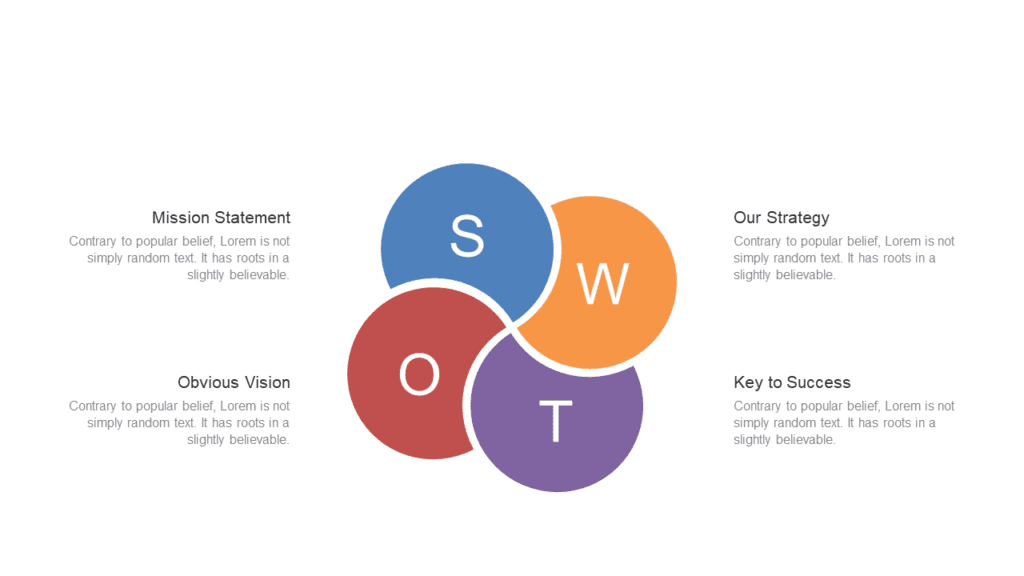
For example, if you need a SWOT slide, you can browse SWOT Analysis PowerPoint templates instead of searching through hundreds of unrelated business designs.
Think About Your Audience
The same content can require completely different presentation styles depending on who will see it.
A presentation to a board of executives usually needs to be concise and easy to scan.
A sales presentation may need more visual storytelling.
A training presentation can afford more explanatory content.
A pitch deck needs to move quickly from problem to opportunity to solution.
Ask yourself:
Who is sitting on the other side of the screen?
Then choose a design that feels appropriate for them.
Professional doesn’t have to mean boring. It means the design supports the message instead of competing with it.
Choose a Style You Can Actually Work With
Once you’ve narrowed down the structure and use case, then look at visual style.
Some presentations work well with a clean, minimal look. Others benefit from stronger colors and more visual contrast.
You might prefer a light presentation for a traditional corporate setting or a dark presentation for a more modern, visual presentation.
SlideSwift templates offer multiple color styles and Light/Dark options, so you can choose a visual direction without rebuilding the entire presentation from scratch.
The important thing is consistency. You don’t want every slide to look like it belongs to a different presentation.
Check Whether the Template Is Editable
This sounds obvious, but it’s worth checking before you buy anything.
A PowerPoint template should give you editable elements rather than forcing you to work around flattened images.
You should be able to change:
- Text
- Fonts
- Colors
- Shapes
- Charts
- Images
- Layout elements
If your company has brand colors, check whether you can adapt the template without redesigning every slide.
The goal is to start with most of the visual work already done and then make the presentation yours.
Complete Deck or Individual Slides?
This decision depends on what you’re actually building.
If you’re starting a presentation from scratch and need a consistent visual system, a complete template or use-case deck usually makes more sense. You get multiple layouts that work together, so you don’t have to search for every slide separately.
But sometimes you don’t need an entire presentation.
Maybe you already have your deck and only need:
- A better SWOT slide
- A roadmap
- A sales funnel
- A process diagram
- A KPI slide
- A comparison slide
- A timeline
In that situation, buying individual slides can be more practical than buying an entire deck.
That’s where the SlideSwift Slide Library becomes useful. You can pick individual presentation slides when you only need to fill a specific gap in an existing presentation.
If you’re starting from scratch, explore the complete PowerPoint templates instead.
A Quick Checklist Before You Choose
Before downloading a PowerPoint template, ask yourself these seven questions:
- What is the main purpose of my presentation?
- Who is going to see it?
- What kinds of information do I need to show?
- Does the template have layouts for that information?
- Can I edit the text, colors, images, and shapes?
- Does the visual style fit my audience and subject?
- Do I need a complete deck or just a few specific slides?
If you can answer those questions, you can usually eliminate most of the templates that looked appealing at first glance.
Don’t Spend Three Hours Designing What You Could Spend 20 Minutes Choosing
There’s nothing wrong with building a PowerPoint presentation from a blank slide. Sometimes that’s exactly what you need.
But if your deadline is tomorrow and the presentation is not your actual job, spending hours deciding whether a heading should be 30pt or 32pt isn’t the best use of your time.
A good template removes that friction.
You still control the message, the numbers, the examples, and the final decisions. The template simply gives you a professional visual foundation to work from.
That’s the real value of a presentation template.
Not making your presentation for you.
Making it easier for you to make a good one.
Find a Starting Point That Fits Your Presentation
If you’re currently searching for a PowerPoint template, start with the use case rather than the design.
Browse by category if you know the type of presentation you’re creating. Look for pitch decks, marketing presentations, strategy slides, project management layouts, SWOT analysis, roadmaps, timelines, infographics, and other specific slide types.
And if you already have most of your presentation finished, don’t feel like you need to replace the entire deck. Pick the individual slides you actually need.
That’s exactly the problem SlideSwift is built around: giving you a faster starting point, whether you need a complete presentation or just the one slide your current deck is missing.
Browse SlideSwift templates and find a presentation starting point for your project.