
Best Project Management PowerPoint Templates for PMs and Team Leads
Every project manager knows the feeling. You have a project update meeting in an hour, your stakeholders expect a clear visual of where things stand, and you are staring at a blank slide trying to remember how you built that timeline last quarter.
The problem is not the information — you have all of it. The problem is turning it into a slide that actually communicates clearly under time pressure. That is exactly what a good project management PowerPoint template solves — a ready-made, professional layout that you fill in rather than build from scratch every time.
Every project management PowerPoint template on SlideSwift is a complete focused deck built specifically for PM presentations. Not a generic business template with one project slide buried somewhere on page twenty. A deck where every slide — the milestone tracker, the phase overview, the task status, the lifecycle diagram — is designed around communicating project progress clearly to stakeholders, leadership, and clients.
Download the deck, fill in your project details, and your presentation is ready. Edit it directly in your browser after purchase — no PowerPoint installation needed — or download the PPTX and work in PowerPoint or Google Slides.
Why Generic Business Templates Do Not Work for Project Presentations
A general business template gives you a title slide, a few bullet point layouts, maybe a bar chart, and a thank you slide. That is fine for a company overview presentation. It is not what you need when you are presenting a project status update to a PMO or explaining a project lifecycle to a client who has never seen your methodology before.
Project presentations have a specific set of slides they need — milestone trackers, phase diagrams, task ownership tables, progress indicators, risk matrices. A focused project management deck has all of these already designed and ready to fill in. You are not adapting a generic template to fit your content. You are working with slides that were built for exactly this purpose.
Best Project Management PowerPoint Templates on SlideSwift
Each deck below is a complete focused collection — every slide designed around project management presentations. Fully editable in PowerPoint, Google Slides, and directly in your browser after purchase with no software needed. All decks are 16:9 widescreen format.
Project Milestone Tracker PowerPoint Templates
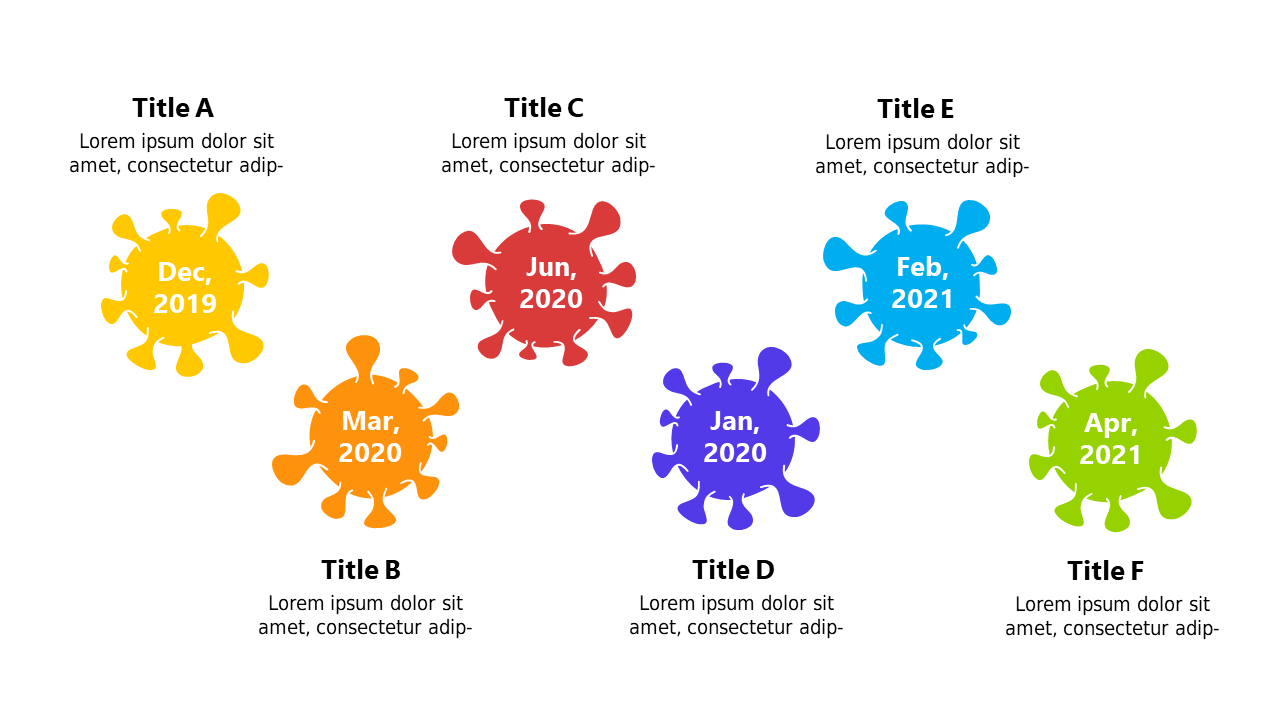
A focused 4-slide milestone tracker deck built for project managers who need to show stakeholders exactly where a project stands against its key checkpoints. Covers project phases, task tracking, and milestone management in a clean, readable layout that works equally well in a team meeting or a client presentation. At $3.99 for a ready-to-use milestone deck, it is the fastest way to get a professional tracker slide without starting from a blank page.
Price: $3.99 | Slides: 4 | Theme: Light | Format: 16:9 Widescreen
Modern Project Lifecycle Management PowerPoint Templates
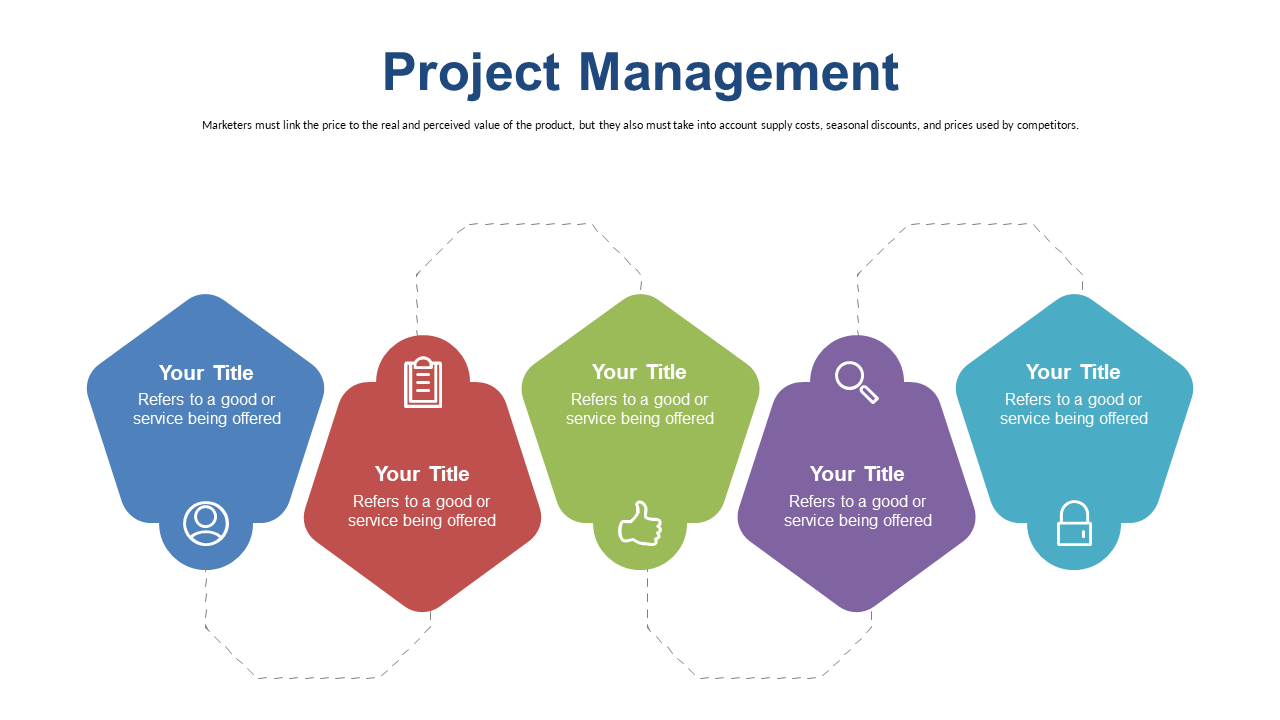
A complete 20-slide project lifecycle deck with a modern visual design — built for PMs, team leads, and PMOs who present the full project journey from initiation to closure. Covers every phase of the project lifecycle with dedicated slides for task tracking, milestone management, phase transitions, and progress reporting. Good for both internal team presentations and external client-facing decks where you need something that looks polished and structured from slide one.
Price: $5.99 | Slides: 20 | Theme: Light | Format: 16:9 Widescreen
Project Lifecycle Management PowerPoint Templates
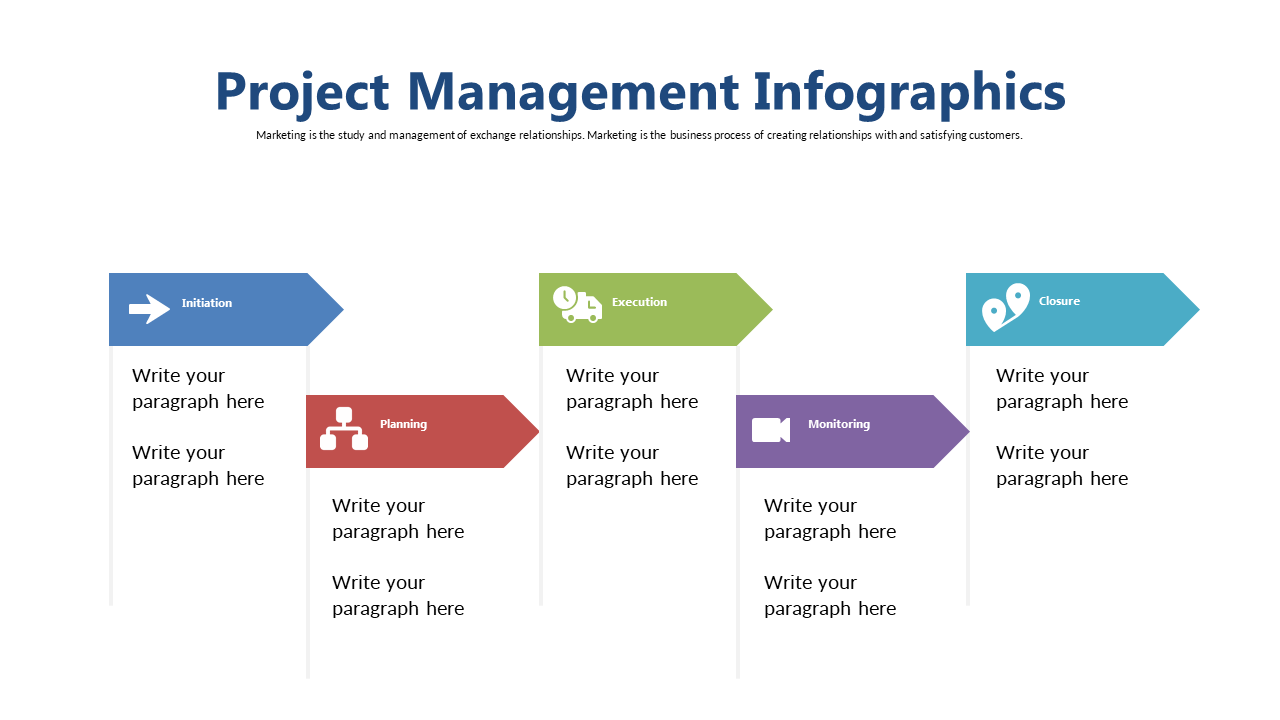
A comprehensive 20-slide project lifecycle management deck covering the complete project management workflow — phases, task tracking, milestone management, and team coordination slides all in one collection. Designed for project managers who need a versatile deck that works across different project types and industries. Each slide is independently editable so you can pick the layouts that fit your specific project structure without being locked into one format.
Price: $5.99 | Slides: 20 | Theme: Light | Format: 16:9 Widescreen
See all Project Management decks →
Only Need One Specific Slide? Pick Exactly What You Need.
Sometimes your presentation is already built and you just need one project management slide to drop into it — a milestone tracker, a phase diagram, a task status table. Buying a full deck for one slide does not make sense in that case.
The SlideSwift Project Management Slide Library has individual project management slides available at $0.99 per slide. No subscription, no minimum order. Pick the one slide you actually need, mix it with slides from other categories if you want, and download exactly what fits your presentation — nothing more.
What a Good Project Management Presentation Actually Needs
A great project management PowerPoint template is only as useful as the content you put in it. Project presentations fail when they try to show everything. A status update that covers every task, every risk, every dependency, and every team member’s workload in one deck loses the audience before you reach the important part.
The slides that actually work in project presentations tend to cover a focused set of things:
Project overview: One slide that shows the project name, objective, timeline, and current phase. Your audience should be able to read this slide in thirty seconds and understand what the project is and where it stands.
Milestone tracker: A visual showing the key checkpoints — completed, in progress, and upcoming. Color coding by status (green/amber/red) makes the overall health of the project immediately readable without anyone having to process a table of dates.
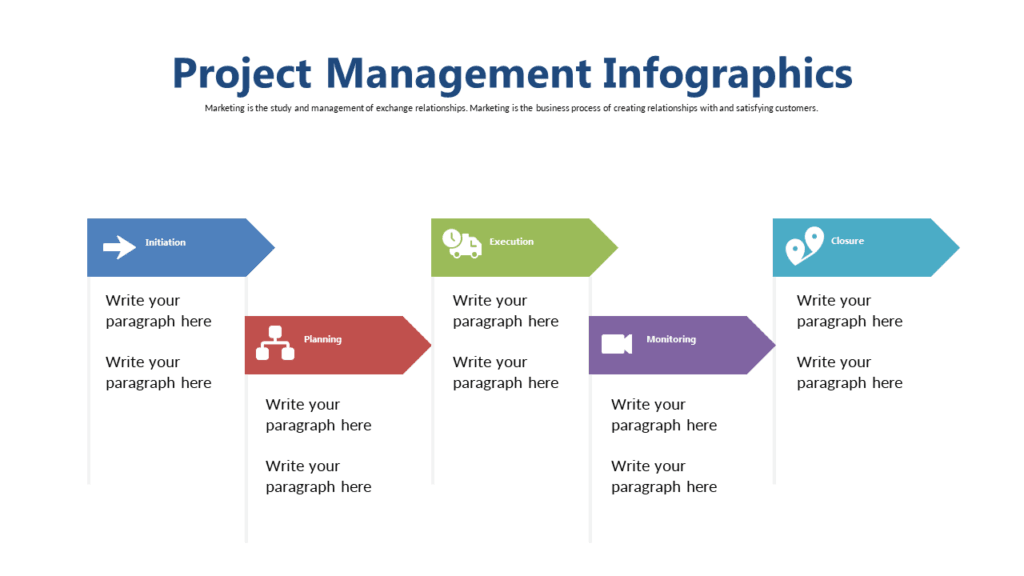
Phase breakdown: For longer projects, a slide that shows the phases — initiation, planning, execution, monitoring, closure — and which phase you are currently in. Helps stakeholders understand where the project is in its lifecycle, not just what tasks are happening this week.
Key risks and blockers: A simple table or visual showing the top two or three risks with their status and mitigation plan. Not every risk — just the ones that could affect the timeline or budget in a meaningful way.
Next steps: What is happening before the next update. Two or three specific actions with owners and dates. Ends the presentation on something concrete rather than a summary slide.
Can I Edit These Without Installing PowerPoint?
Yes. After purchase, every SlideSwift template opens directly in a built-in online editor in your browser — no PowerPoint installation required. Edit the text, update the milestone markers, change the phase labels, and export your finished file without leaving the page where you bought it.
If you prefer working in PowerPoint, download the PPTX file and every element — the tracker bars, the phase boxes, the milestone markers, the status indicators — is a regular editable shape. For Google Slides, upload the PPTX to Google Drive and open it with Google Slides. Everything transfers cleanly and is fully editable from there too.
How to Update a Project Milestone Tracker Slide in 5 Minutes
Milestone labels: Click any milestone text box and type your own checkpoint name — “Requirements sign-off”, “Development complete”, “UAT passed”, whatever fits your project.
Status colors: Right-click any milestone marker or phase bar → Format Shape → Fill → change the color to match your status coding. Green for complete, amber for at risk, red for blocked.
Timeline dates: Click any date label and type your actual dates. The labels are regular text boxes — no formulas or linked data to worry about.
Adding milestones: Copy any existing milestone element (Ctrl+C, Ctrl+V) and drag it to the right position on the tracker. Resize or recolor to match the others.
Removing milestones: Click to select, press Delete. Done.
The whole process for updating a milestone tracker in a project management PowerPoint template from one week’s status to the next usually takes less than five minutes once you know where everything is.
Project Management PowerPoint Templates for Different Roles
Not everyone presenting a project is a project manager. The same deck often needs to work for different people in different situations.
Project managers: Use the full lifecycle deck for initial project kickoff presentations and quarterly reviews. Use the milestone tracker for weekly or biweekly status updates. Keep both in your templates folder so you are not rebuilding from scratch each time.
Team leads: The milestone tracker and task status slides are the most useful for team-level presentations. Focus on what is complete, what is in progress, and what is blocked — your audience does not need the full lifecycle view.
PMOs: The lifecycle management deck gives you the structured overview that works well for portfolio-level reporting. Customize the phase labels to match your organization’s project methodology — whether you follow PMBOK, PRINCE2, Agile, or a hybrid approach, the shapes are editable and the labels are text boxes.
Consultants: Client-facing project presentations benefit from a clean, designed layout that does not look like it came from a corporate template library. A focused deck with consistent visual design signals that you have invested in how you present, not just what you present.
Browse All Project Management Templates — Complete Decks From $3.99
The next time you have a project status meeting, a client update, or a PMO review, you should not be spending time building slides from scratch or adapting a generic business template to fit project content.
Start with a project management PowerPoint template that is already built for it. Update the milestones, the phases, the status indicators, and your presentation is ready.
Browse all Project Management PowerPoint decks on SlideSwift →